
Lube ClipboardsPrivate beta on macOS

Everything you copy, one keystroke away.

Find that link you copied earlier and paste it the way you need. Keep your clipboard history close, with screen capture and markup for the screenshots you share.

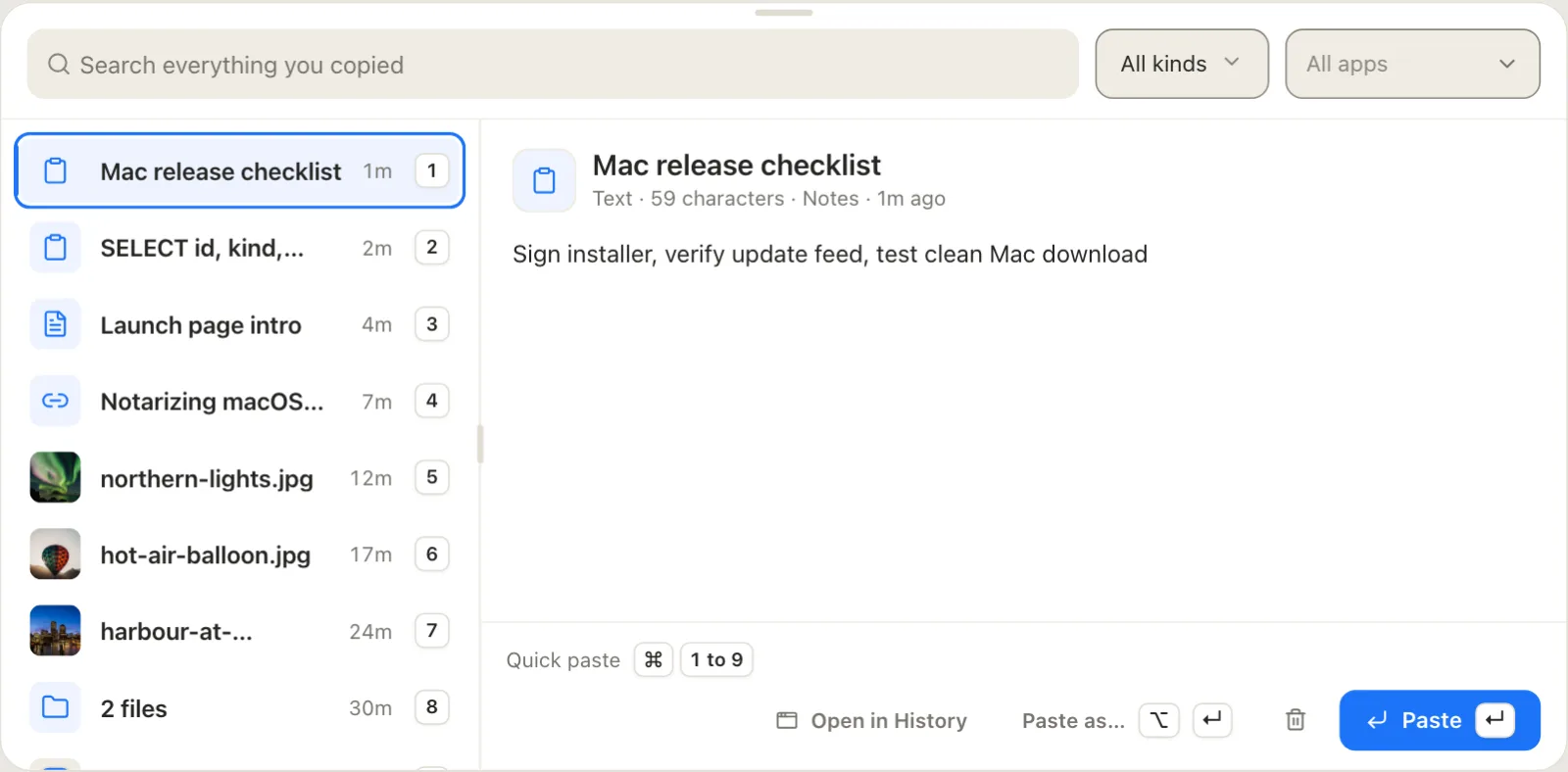
The Lube Clipboards quick picker in light mode. A search field sits above a numbered list of recent clips: notes, an SQL query, a link, three photos and two files. The selected note, Mac release checklist, is shown on the right with a Paste button.
An earlier copy is still within reach. Press ⌘⇧V in any app.

Try it on this photo. Make your point, then save a copy to keep. Nothing is uploaded.

Bring your favourites. Import any Telegram sticker pack from a link or a zip.

You copied it an hour ago and it’s been overwritten since.

Find it again with ⌘⇧V. Paste with ⌘1 to ⌘9, or as plain text with one key.

find an earlier copy without leaving your app
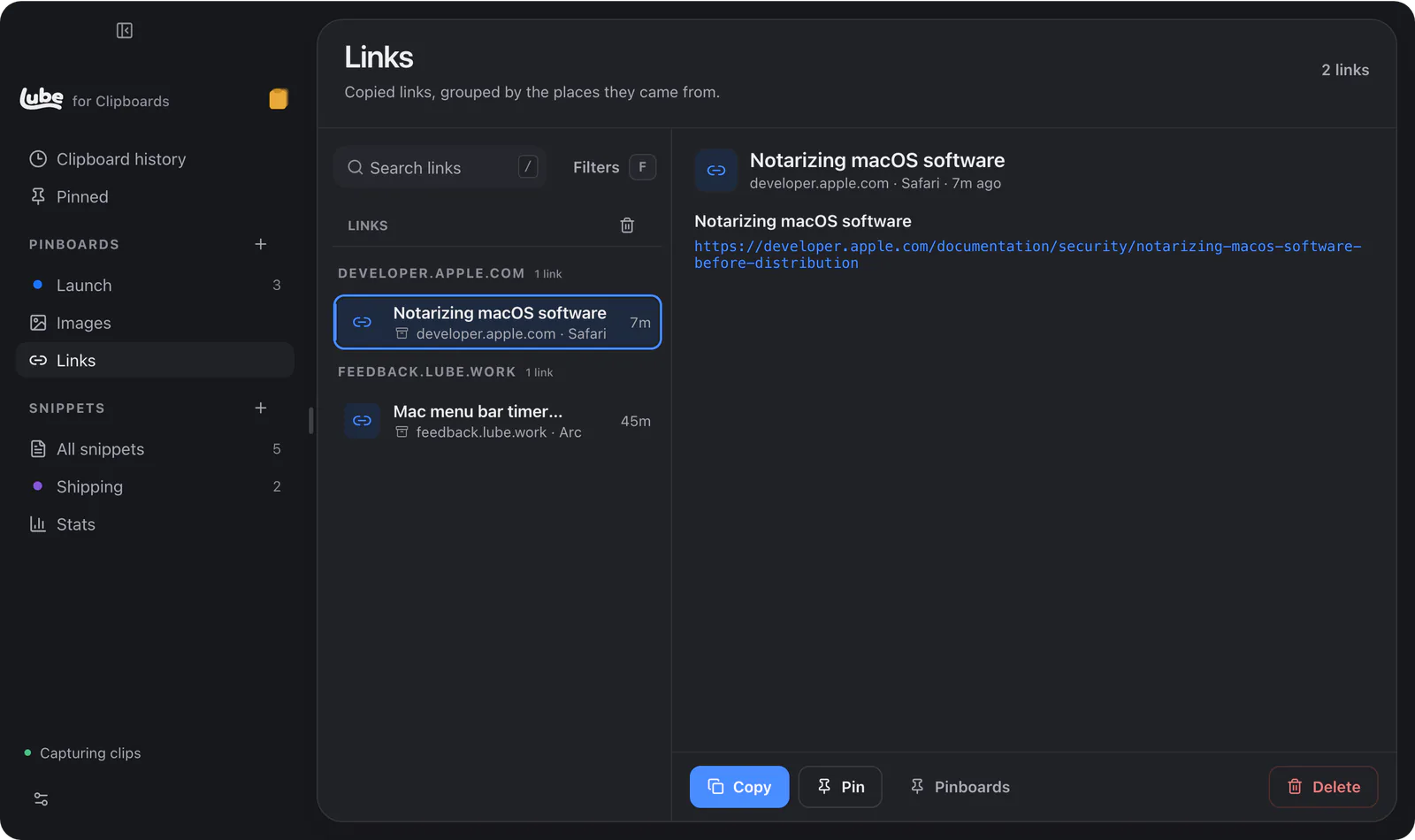
The Links view of Lube Clipboards in dark mode. Copied links are grouped by site, developer.apple.com and feedback.lube.work. The selected link, Notarizing macOS software, shows its full URL with Copy, Pin and Delete buttons.
Find that page again, with links grouped by site and titles you recognise.

It pastes with the wrong formatting, again.

Paste as plain text with one key, or trimmed, in any case, as tidy JSON, or as a link with the tracking stripped. Set a rule per app and it just happens.

  • Plain text
  • Trimmed
  • UPPER
  • lower
  • Title Case
  • Tidy JSON
  • Clean link

It’s somewhere in last week’s screenshots.

Every copied image goes into a gallery, grouped by app or date. Search finds the text inside screenshots, read on your device.
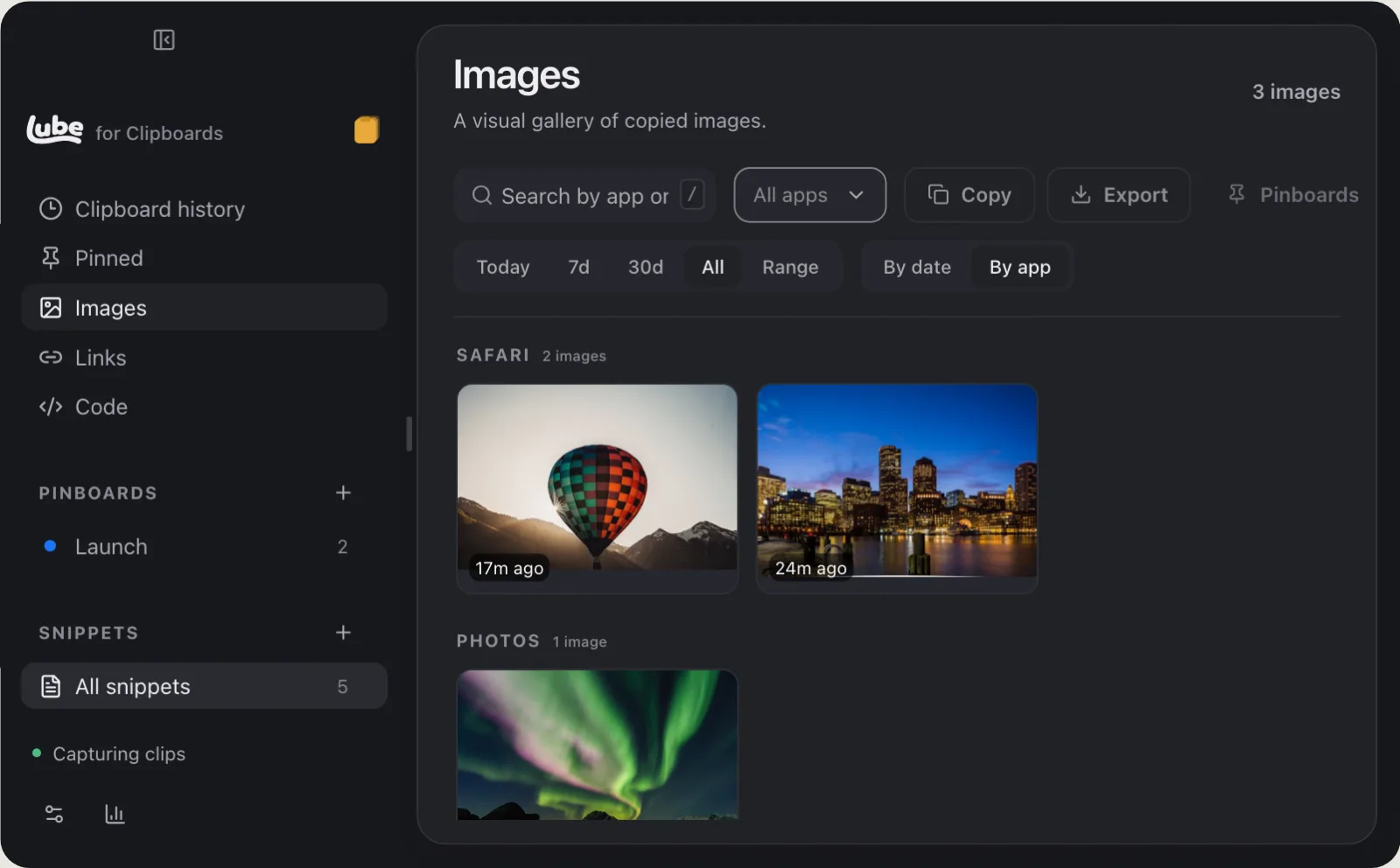
The Images view of Lube Clipboards in dark mode. Three copied photos are grouped by the app they came from: a hot air balloon and a harbour at night from Safari, and the northern lights from Photos, with filters for date range and app.
Find an image by the app or day you copied it.

You type the same query every morning.

Reuse a snippet, organised by language, tags and collection.
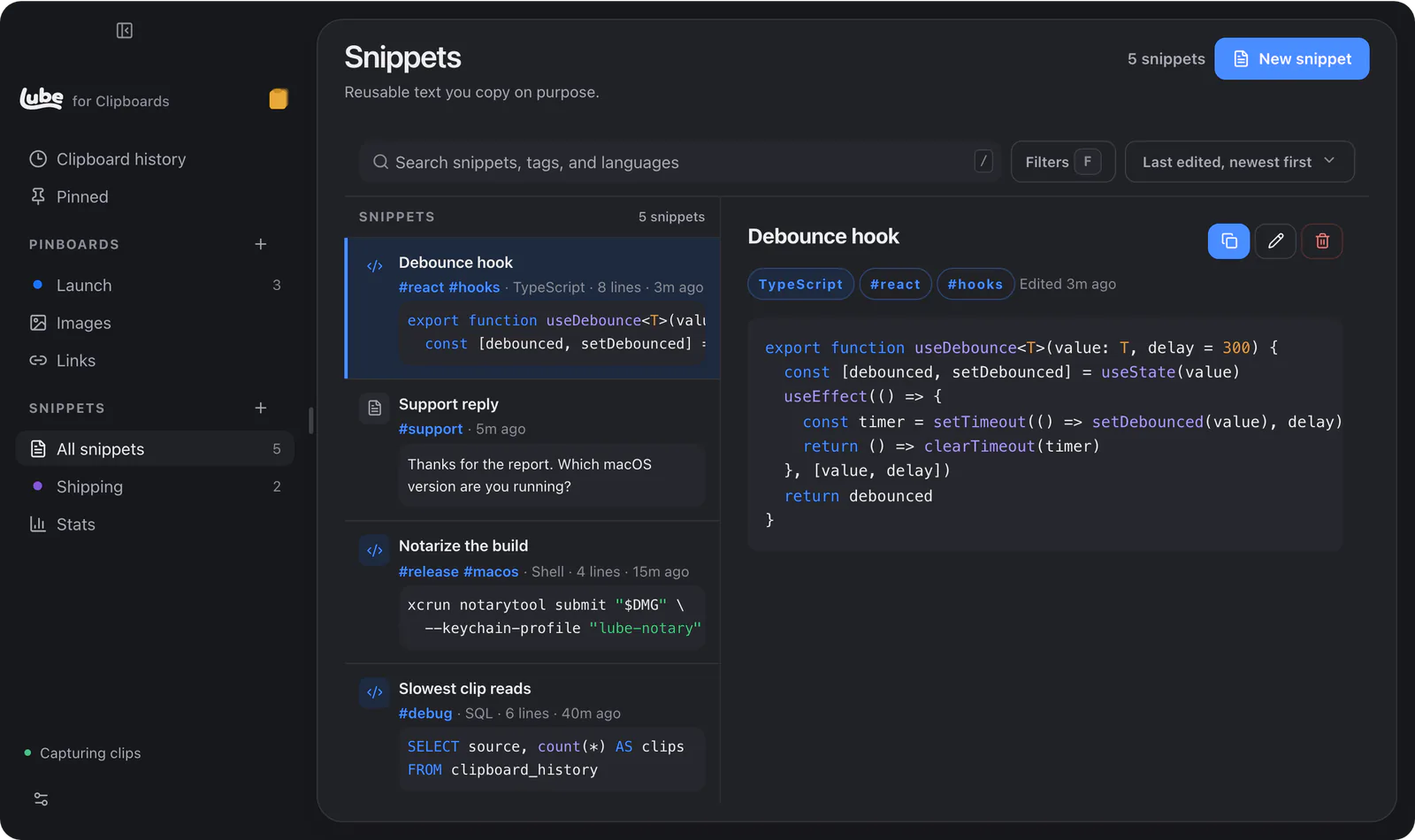
The Snippets view of Lube Clipboards in dark mode. A list of saved snippets with tags, including a TypeScript debounce hook, a support reply, a shell command and an SQL query. The debounce hook is open on the right with syntax highlighting.
Reusable snippets by language, tags and collection.

The screenshot needs explaining before you send it.

Explain it with 17 tools, from arrows and speech bubbles to redaction.
Make your screenshot clear

  • Arrow
  • Line
  • Rectangle
  • Ellipse
  • Pen
  • Highlighter
  • Text
  • Numbered step
  • Pixelate
  • Spotlight
  • Magnifier
  • Shape
  • Ruler
  • Stamp
  • Sticker
  • Signature
  • Crop

Make your point clear

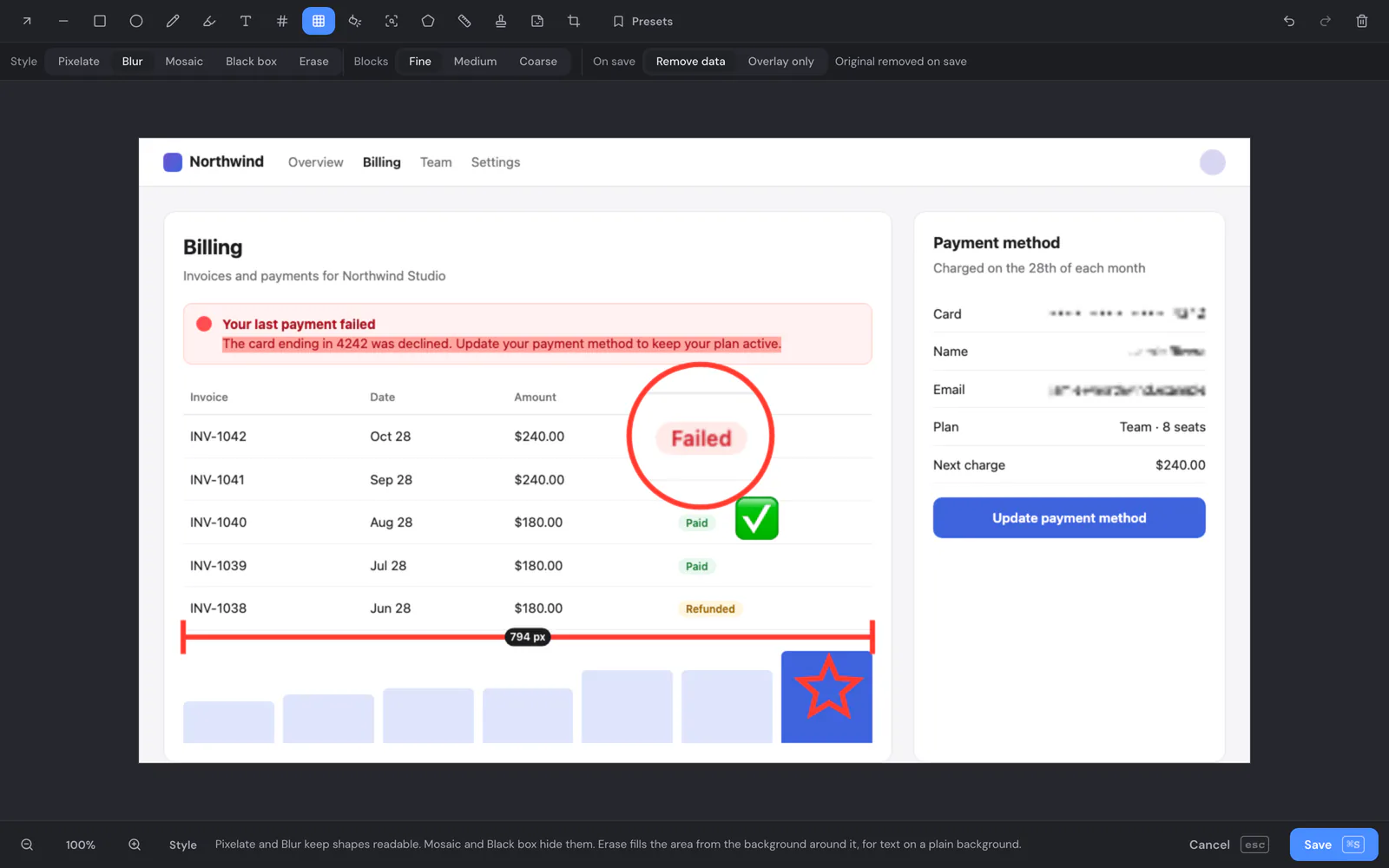
The redact tool in the Lube Clipboards markup editor, set to Blur, on a billing page screenshot. The card number, name and email are blurred, a red circle marks a Failed status, and a ruler measures the invoice table at 794 pixels.
RedactionPixelate, blur, mosaic, black box or erase. Remove data takes the original pixels out of the saved image.
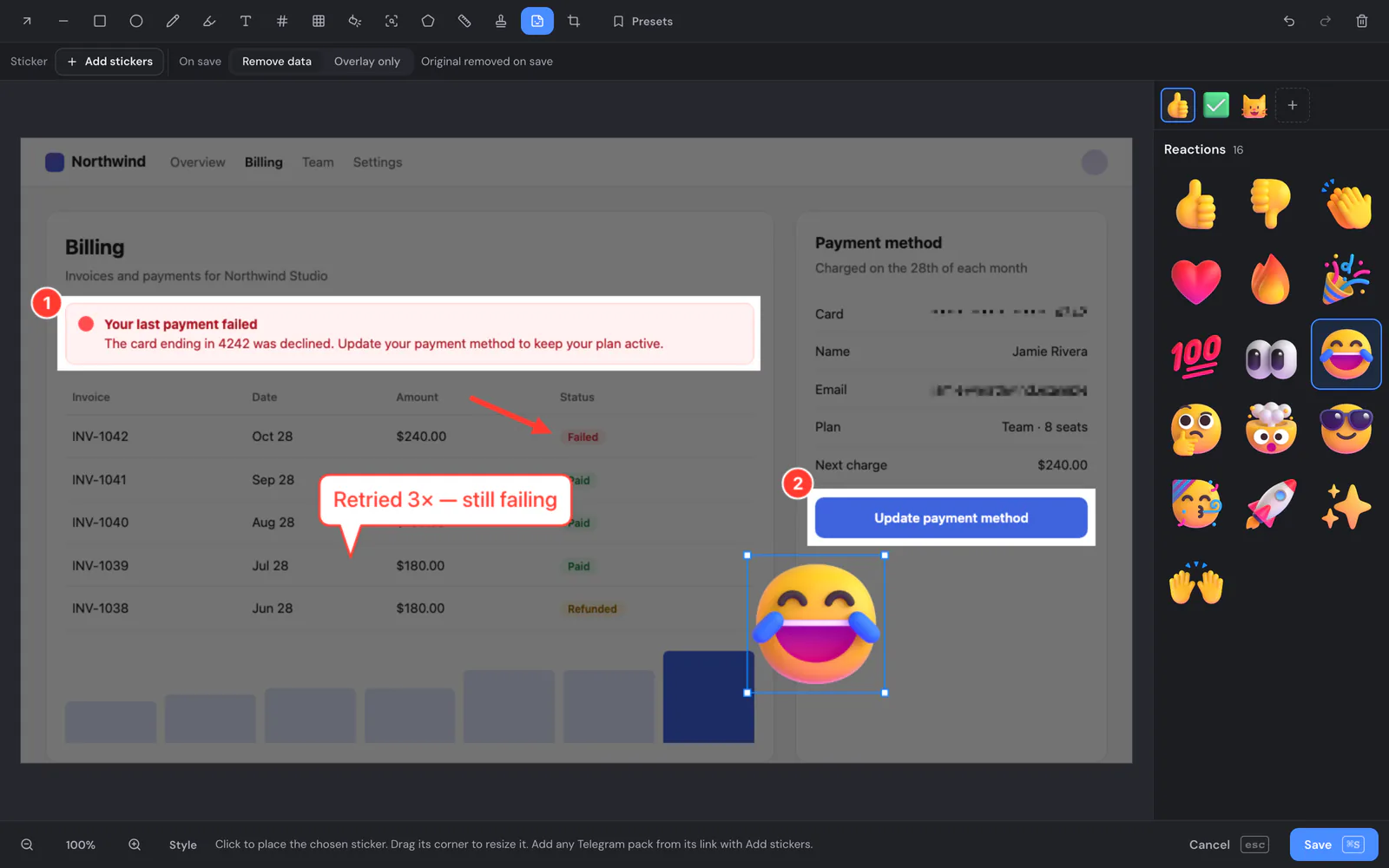
The sticker tool in the Lube Clipboards markup editor. A panel of emoji reaction stickers sits on the right, and a laughing emoji is being placed on an annotated billing page screenshot.
Stickers, a spotlight and speech bubblesDim everything but the part that matters, say why in a bubble, and stick on a reaction.
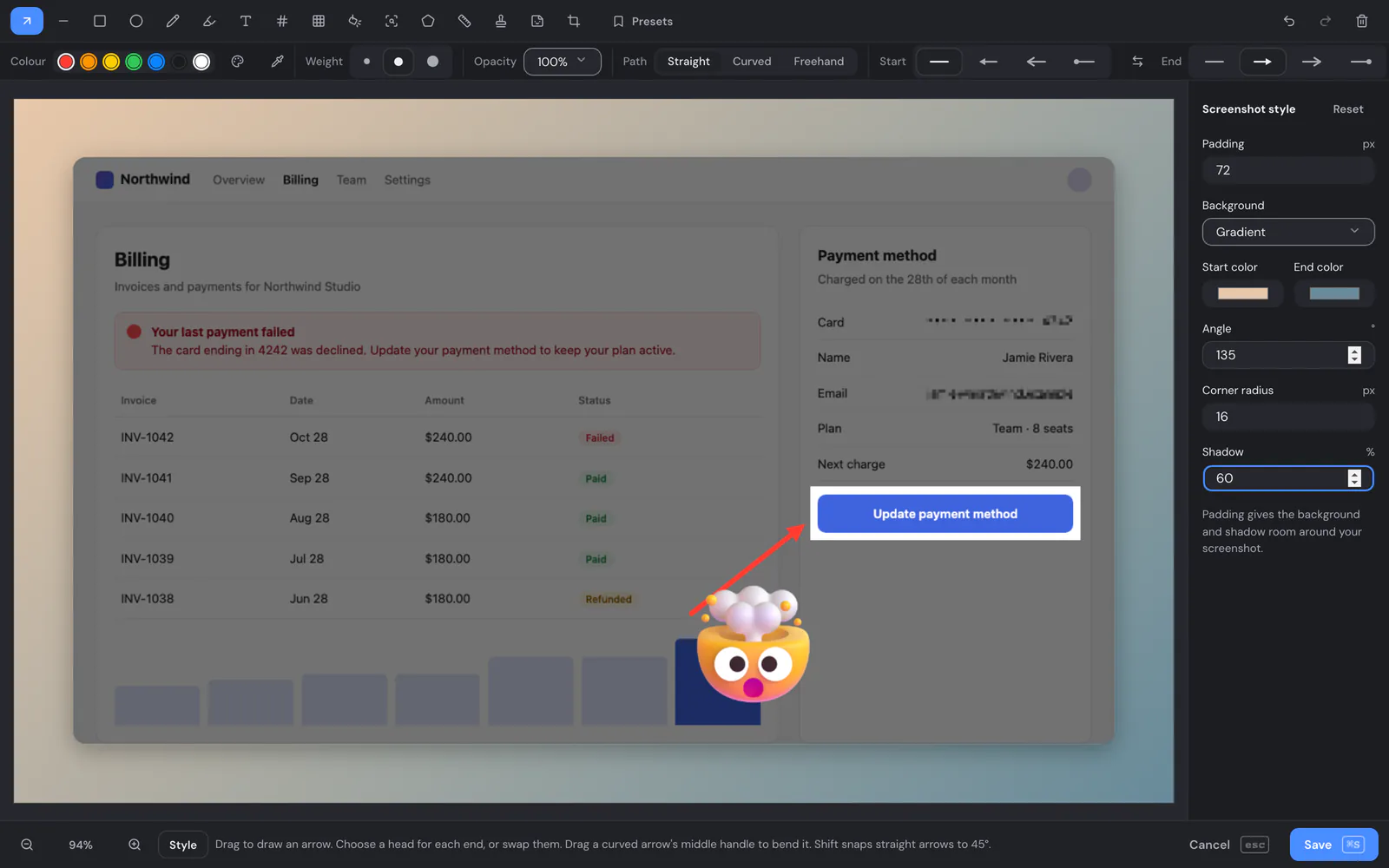
The screenshot style panel in the Lube Clipboards markup editor. An annotated billing page sits on a peach to blue gradient background, with settings for padding, background colours, angle, corner radius and shadow.
BackgroundFrame your screenshot with padding, a background, round corners and a shadow.
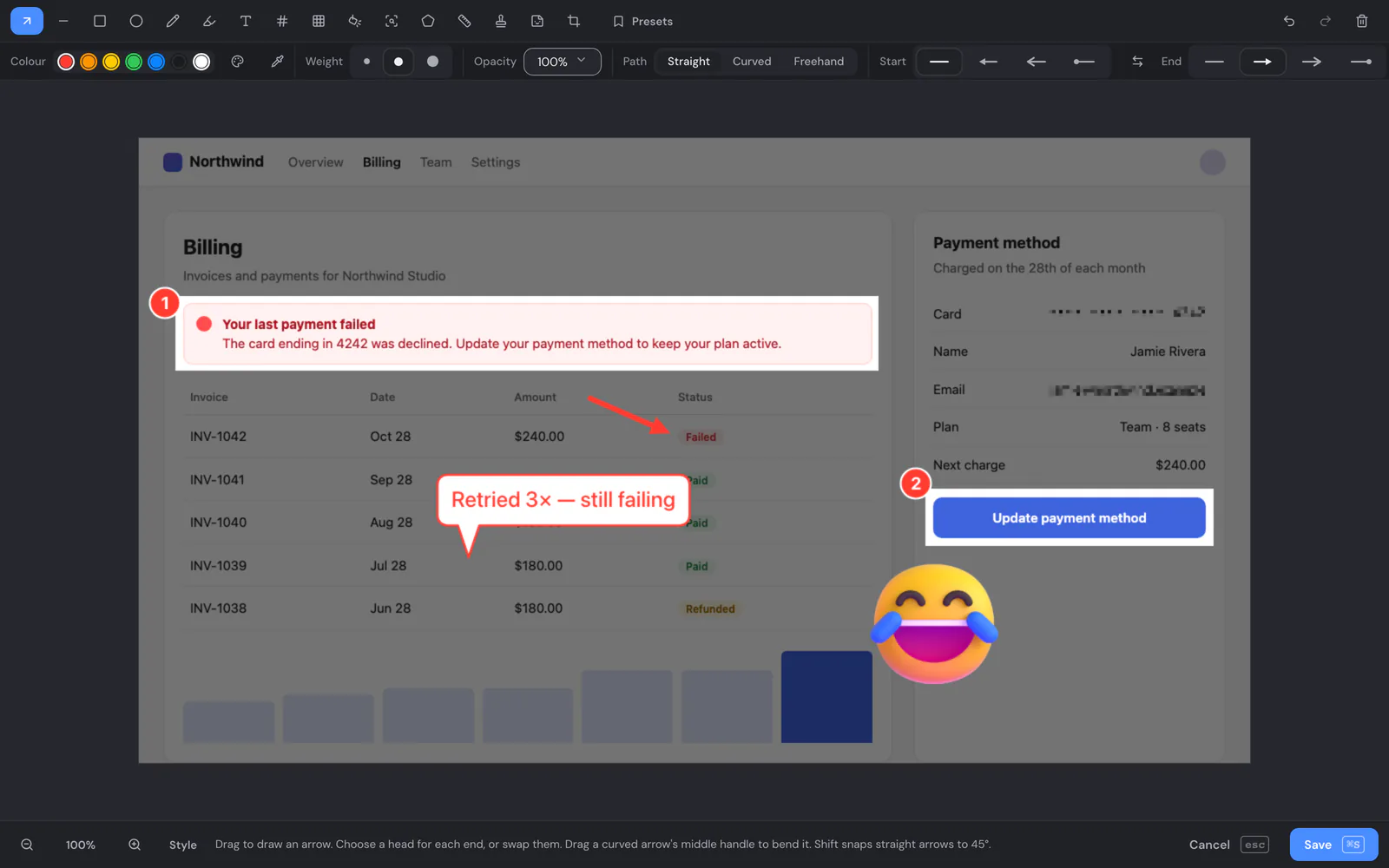
A billing page screenshot annotated in the Lube Clipboards markup editor: numbered highlights on a failed payment notice and the Update payment method button, an arrow to a Failed status, a callout reading Retried 3 times, still failing, and a laughing emoji sticker. The card number and email are blurred.
Arrows and numbered stepsGuide readers with straight, curved or freehand arrows and numbered steps.

A plain arrow isn’t getting anyone’s attention.

Stick on one of 338 built-in stickers, or import any Telegram pack.

The sticker tool in the Lube Clipboards markup editor. A panel of emoji reaction stickers sits on the right, and a laughing emoji is being placed on an annotated billing page screenshot.
Give your screenshot some personality with a sticker sized to fit.

There’s an API key in the corner of the screenshot.

Clipboards points out emails, keys and tokens, card numbers and IP addresses. Pixelate, blur or erase them.

EmailKey or tokenCard numberIP address
The redact tool in the Lube Clipboards markup editor, set to Blur, on a billing page screenshot. The card number, name and email are blurred, a red circle marks a Failed status, and a ruler measures the invoice table at 794 pixels.
Share the screenshot without the name or email. Remove data deletes the original pixels from the saved image.

Save a little more time

  • Your last copy is still thereFind an earlier copy with ⌘⇧V. Paste it with ⌘1 to ⌘9.
  • Keeps every kind of clipText, rich text, links, images, files, colours and code, with the app each one came from.
  • Finds anythingSearch text, links, file paths, colour codes and the text inside screenshots. Filter by app, site, kind or date.
  • Paste it your wayPlain text, any case, tidy JSON, or a link with the tracking stripped. Rules per app.
  • Screen captureCapture an area, a window or the full screen, record it, or copy just the text in it.
  • PinboardsKeep the clips you reuse. Pinned clips never expire.
  • Code in 46 languagesHighlighted, and it keeps its colours when you paste it into docs and slides.
  • Private by defaultNever records copies from password managers. AI access is off until you turn it on.

Universal clipboard is coming soon

Use the computer or phone you prefer. Most of our apps are coming to Windows, Linux, iOS and Android.

  • macOSPrivate beta
  • WindowsComing soon
  • LinuxComing soon
  • iOSComing soon
  • AndroidComing soon

Pricing

Start free, with no credit card. Upgrade for your whole history. Sync across devices is coming soon.

  • Free

    The essentials, on this Mac.

    $0

    Free for as long as you like

    • The last 3 days of history
    • Pinned and pinboard clips, however old
    • Up to 10 pins, 3 pinboards and 3 snippet collections
    • Every capture and markup tool

    Most people never need a clip more than 3 days old, so Free can be all you ever use. Pay if you want your whole history and the rest, or just to help us keep building apps.

  • Most popular

    Pro

    Everything you copy, on all your devices.

    instead of $2.99$2a month

    Billed $24 a year

    • Your whole clipboard history
    • Unlimited pins, pinboards and snippet collections
    • Every capture and markup tool
    • Sync across 5 devices, with 30 days of cloud history and 5 GB of imagesComing soon
  • Max

    Twice the room of Pro, for heavy use.

    instead of $5.99$4a month

    Billed $48 a year

    • Everything in Pro
    • Sync across 10 devices, with 60 days of cloud history and 15 GB of imagesComing soon

A synced clip stays on every device it reached, for as long as you keep it there. Only the cloud copy is cleared: after 30 days on Pro and 60 days on Max, except pinned clips and pinboards.

Prices in USD. You choose a plan in your lube account.

Join the Clipboards beta

Keep the next thing you copy within reach.
We only use your email for these betas and their launch. See our privacy policy.